Batch Uploads
Batch uploads allow you to analyze multiple conversation files at once with shared settings. All files in a batch are grouped together and produce an aggregate report alongside individual dashboards.
How to Upload a Batch
- Navigate to
/upload - Select multiple JSON files (up to 10 files per batch)
- Configure shared settings:
- Analysis Mode — Gemini, Groq, or Both (applies to all files in the batch)
- Analysis Types — Hallucination, Bias, Toxicity (applies to all files)
- Ground Truth — Optional reference document (applies to all files)
- Click Upload
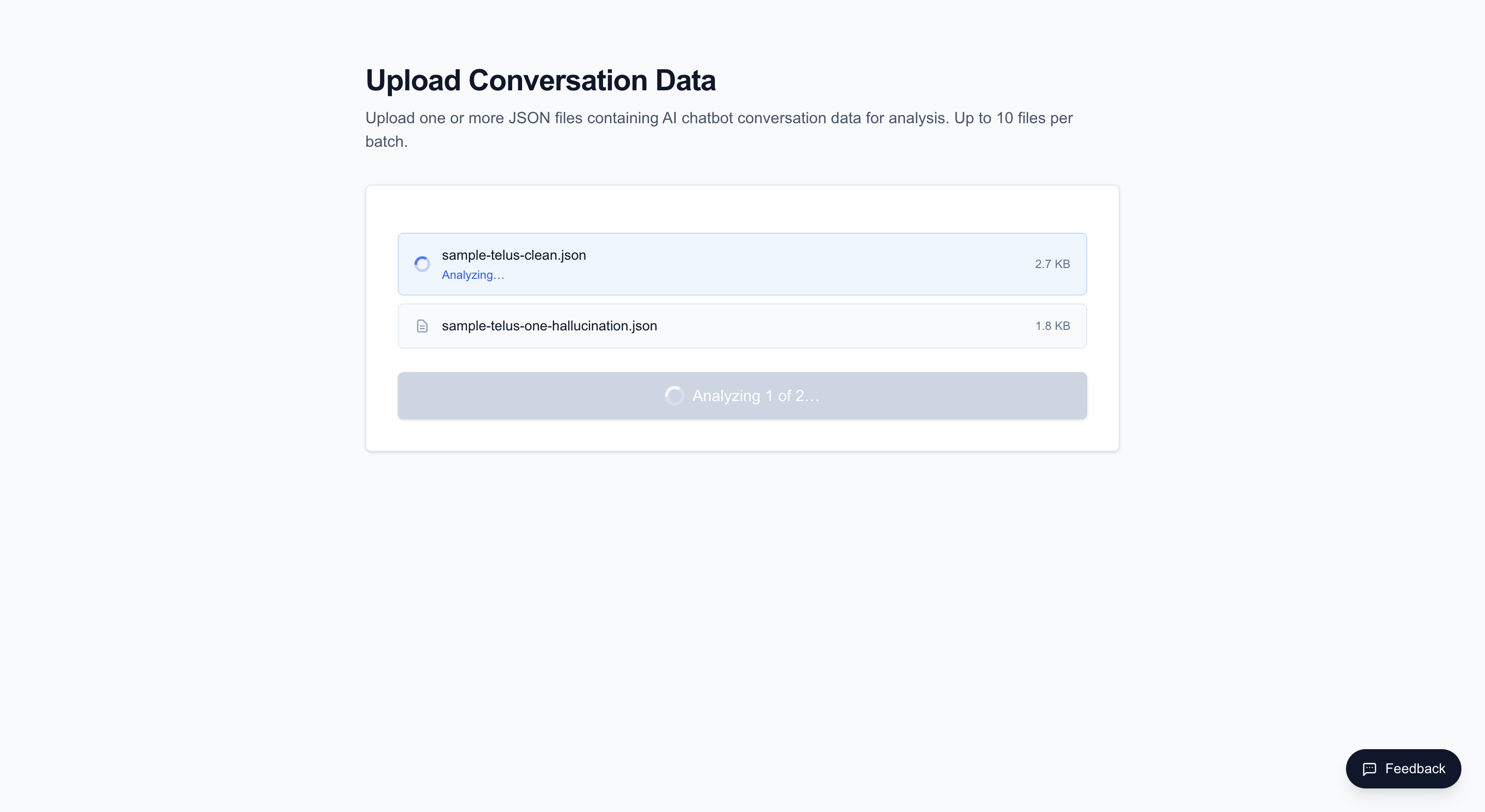
Files are uploaded sequentially, each with a shared batchId. The upload page shows per-file progress:
- Pending — Waiting to be uploaded
- Uploading — Currently being sent and analyzed
- Done — Analysis complete
- Error — Upload or analysis failed
When all files complete, a "View Batch Report" button appears.
Batch Report
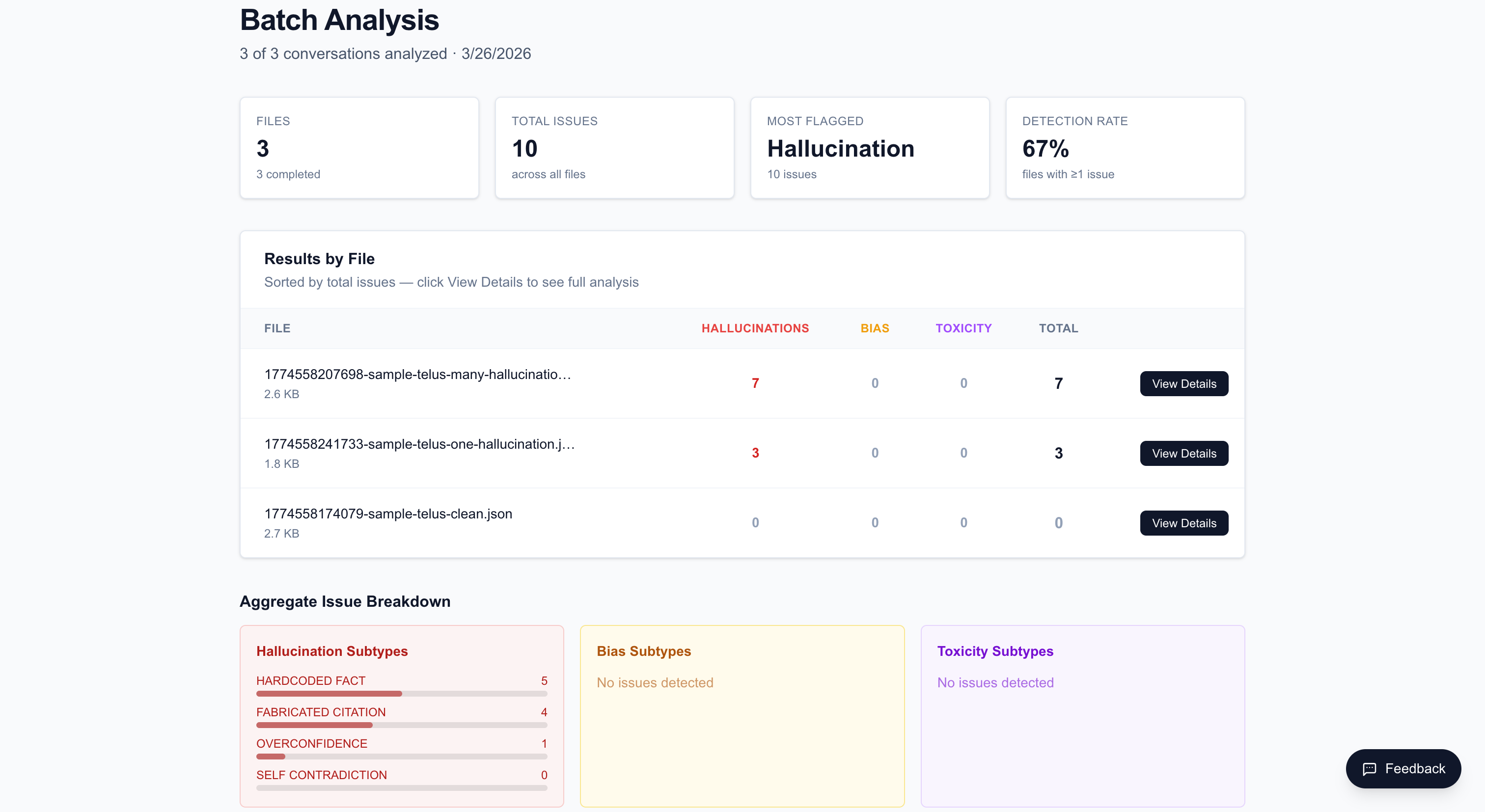
The batch report at /batch/[batchId] provides:
Aggregate KPIs
- Total files analyzed
- Total issues detected across all files
- Most flagged category (hallucination, bias, or toxicity)
- Overall detection rate
Per-File Results Table
A table showing each file with columns for:
- File name
- Hallucination count
- Bias count
- Toxicity count
- Total issues
- Link to view the individual dashboard
Subtype Breakdown
Aggregate charts showing the distribution of issue subtypes across all files in the batch — for example, how many Fabricated Citations vs. Self-Contradictions were found across the entire batch.
Viewing Past Batches
Go to /uploads to see your upload history. Batch uploads appear as collapsible cards that show:
- The batch ID and total file count
- A summary of results
- Click to expand and see individual file results
- Each file links to its own analysis dashboard
Limits
- Maximum 10 files per batch
- Each file must be valid JSON in the expected conversation format
- Each file has a 5 MB maximum size
- Rate limits apply per file: 5 uploads/minute, 40 uploads/day per user